


Google Analytics 4 for Video Engagement Tracking

Google Analytics 4 for Video Engagement Tracking
 19-03-2026 (Last modified: 23-09-2026)
Google Analytics 4 (GA4) makes it easier to track how users interact with videos on your site. Instead of just counting views, GA4 captures detailed engagement data like play starts, progress milestones (10%, 25%, 50%, 75%), and completions – automatically, with no coding required. This allows you to analyze viewer behavior, identify drop-off points, and directly connect video performance to conversions.
Key features include:
- Enhanced Measurement: Tracks video events like
video_start,video_progress, andvideo_completewithout manual setup. - Engaged-View Metric: Links user actions (like conversions) within three days of watching 10+ seconds of a YouTube video.
- Custom Dimensions: Add parameters like
video_percentandvideo_titleto explore deeper insights.
How to view video engagement data in Google Analytics 4 reports

sbb-itb-6e49fcd
Setting Up Video Engagement Tracking in Google Analytics 4
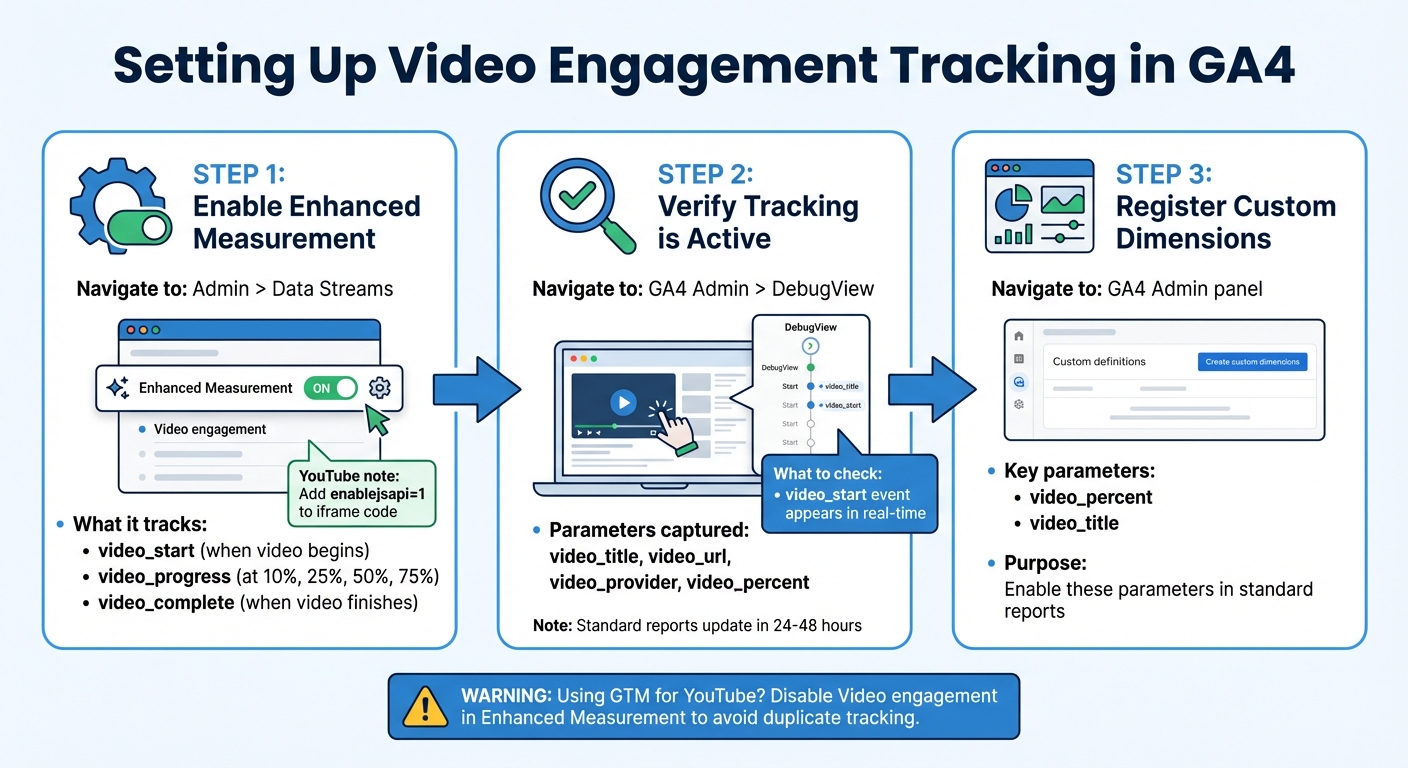
GA4 Video Engagement Tracking Setup Guide: 3-Step Process
Tracking video engagement in GA4 is quick and doesn’t require modifying your site’s code. These steps build on the earlier discussion about the advantages of using GA4 for video engagement tracking.
Enable Enhanced Measurement for Video Tracking
Start by navigating to Admin > Data Streams in GA4 and selecting the data stream you want to configure. This setup enables automatic tracking of key video events like video_start, video_progress, and video_complete.
In the data stream settings, find the Enhanced measurement section. You can either toggle the switch to On to enable all automatic tracking features or click the gear icon to activate just the “Video engagement” setting. Once enabled, GA4 will automatically track the following:
video_start: When a video begins.video_progress: When viewers reach 10%, 25%, 50%, and 75% of the video’s duration.video_complete: When the video finishes.
For YouTube videos embedded on your site, make sure the player supports the JavaScript API. Add enablejsapi=1 (or enablejsapi="true") to the iframe code. If you’re using Google Tag Manager for YouTube video tracking, disable the “Video engagement” option in GA4’s Enhanced Measurement to avoid duplicate event tracking.
Verify Video Engagement Tracking is Active
Once you’ve enabled enhanced measurement, confirm that it’s working properly. Follow these steps to verify tracking:
- Open GA4 Admin > DebugView.
- In another browser tab, visit your website and interact with the video, ensuring you hit progress milestones like 10%, 25%, etc.
In DebugView, you should see the video_start event appear in real time. Click on it to review captured parameters such as video_title, video_url, video_provider, and video_percent. If these events aren’t showing up, double-check that the enablejsapi=1 parameter is included in your iframe.
Keep in mind that DebugView displays real-time data, but standard reports in GA4 may take 24 to 48 hours to update. If you want to use parameters like video_percent in your regular reports, you’ll need to register them as custom dimensions in the GA4 Admin panel.
Understanding Video Engagement Events in GA4
Overview of Automatic Video Events
Google Analytics 4 (GA4) makes tracking video engagement easier by automatically logging three key events:
video_start: This event triggers as soon as a viewer hits play on a video.video_progress: This event tracks when viewers hit specific milestones – 10%, 25%, 50%, and 75% of the video’s length. Each time a milestone is reached, GA4 records details like the video’s title, URL, duration, and the percentage completed. It also includes avisibleparameter to confirm whether the video player was actually on-screen, ensuring background plays are excluded.video_complete: This event fires when a viewer finishes watching the entire video.
These metrics go beyond simple interaction tracking – they provide insights that can help you refine and improve your video content using modern optimization tools.
How to Use Video Engagement Metrics
You can use these engagement metrics to better understand viewer behavior and fine-tune your videos:
- Completion Rate: Divide the number of
video_completeevents byvideo_startevents to see how many viewers stick around until the end. If many viewers start but few finish, it might signal that your content isn’t resonating or delivering on expectations. - Drop-Off Analysis: Look at
video_progressdata to pinpoint where viewers lose interest. For example, if there’s a sharp decline between 25% and 50%, it could mean your introduction is too lengthy or the pacing needs improvement. Comparing these milestones across videos of varying lengths can help you figure out the optimal structure. - Start Rate: Compare
video_startevents to total page views to assess how well your video placement grabs attention. This can guide decisions about where to position videos on your site for maximum impact.
One thing to note: if a viewer returns to a YouTube video and resumes playback from where they left off, the video_start event may log a starting percentage above 0%. To capture these percentages in your reports, you can configure the video_percent parameter as an event-scoped custom dimension in GA4’s Admin panel.
Advanced Video Tracking for Embedded Videos
Integrating YouTube and Vimeo with Google Tag Manager

To avoid duplicate tracking, make sure to disable the “Video Engagement” toggle in GA4’s Enhanced Measurement settings.
For YouTube, start by enabling GTM’s built-in video variables like Video Title, Video Percent, and Video Status. Then, create a YouTube Video trigger and specify the interactions you want to track – such as Start, Complete, or progress milestones (e.g., 25%, 50%, 75%, or 90%). Julius Fedorovicius, the Founder of Analytics Mania, highlights:
“GTM is more forgiving if API support is missing from the embed code”.
In the trigger’s advanced settings, enable JavaScript API support, which injects enablejsapi=1 into your YouTube iframe. Afterward, create a GA4 Event tag that dynamically names your events using the Video Status variable (e.g., video_{{Video Status}}).
For Vimeo, tracking requires a more hands-on approach since GTM lacks a native Vimeo trigger. First, set up a Custom JavaScript variable to detect “player.vimeo.com” in iframe URLs. Then, create a “Window Loaded” trigger that activates only when this variable returns true – after the Vimeo API has loaded. Next, use a Custom HTML tag to listen for video events and push the data into the Data Layer. Define Data Layer Variables like video_action, video_title, and video_percent. Finally, fire a GA4 tag using a Custom Event trigger (e.g., “video”). This method ensures that GA4’s video engagement events – such as video_start, video_progress, and video_complete – work seamlessly with Vimeo and other third-party players.
Always test your setup thoroughly using GTM Preview mode and GA4’s DebugView before rolling out changes.
Customizing Tracking for Non-Native Video Platforms
For video players that aren’t YouTube or Vimeo, a manual setup can help ensure accurate tracking. This is especially important for self-hosted or third-party players to maintain consistent video engagement data in GA4.
For self-hosted HTML5 videos or other players, start by creating a Custom JavaScript variable in GTM to detect <video> tags on your page. This prevents unnecessary script execution on pages that don’t contain videos. Use a “Window Loaded” trigger instead of “DOM Ready” to ensure all video elements and APIs are fully initialized before tracking begins. Then, set up a Custom HTML tag to listen for native HTML5 events like play, pause, and timeupdate, pushing the interaction data into the Data Layer. Define Data Layer Variables such as video_action, video_title, and video_percent. Finally, fire a GA4 tag using a Custom Event trigger.
One essential step is to manually register parameters like video_percent as event-scoped custom dimensions in GA4’s Admin panel. Without this, these parameters won’t appear in your standard reports. To keep reporting consistent across all platforms, use naming conventions that align with GA4’s native YouTube tracking, such as video_start, video_progress, and video_complete.
Analyzing and Reporting Video Engagement Data
GA4’s automatic event tracking is a great starting point, but custom reports take things further by offering deeper insights into video performance. These custom reports can help you understand viewer behavior and fine-tune your video content for better engagement.
Creating Custom Reports in GA4
The standard Engagement > Events section in GA4 gives you a basic count of events, but it doesn’t tell you which videos are being watched or how far viewers are sticking around. To get that level of detail, head to the Explore section and build custom reports.
Here’s how you can do it:
- Start a blank exploration report.
- Add Video title as rows and Event count as values.
- Filter by the event name
video_start.
This setup shows you which videos are getting the most plays. To analyze viewer drop-off points, activate the custom dimensions for video_percent. Then, create a report with Video percent as rows and Event count as values, filtering for the video_progress event. Be sure to clean your data by excluding (not set) or inf values.
Want to see the full engagement lifecycle? Use a “matches regex” filter with the expression video_start|video_progress|video_complete. Once your report is ready, save it to the GA4 Library and pin it to the Engagement menu for easy access.
With these reports, you’ll have the tools to dig into the metrics and uncover meaningful insights about your audience.
Interpreting Video Engagement Metrics
GA4 tracks three key events for video engagement: video_start, video_progress, and video_complete. Each one reveals something different about how viewers interact with your content.
- Completion rate: This is calculated as (
video_complete/video_start) × 100 and helps you gauge if your video kept viewers engaged until the end. - Play rate: Calculated as (
video_start/ Page Views) × 100, this metric evaluates how well your thumbnails, titles, and video placement are encouraging clicks.
Drop-off patterns can tell you a lot about potential issues in your videos. For example:
- Early drop-offs might mean your introduction isn’t grabbing attention.
- Mid-video drop-offs could point to pacing problems.
- Late drop-offs might suggest the ending is falling flat or the video is too long.
Aria Chen, Head of Digital Analytics at CloudSphere Dynamics, puts it best:
“Data becomes intelligence when you add business context… Custom dimensions are the bridge between those two worlds”.
To dig deeper, try using Funnel Explorations to map the journey from start to completion and identify where most viewers drop off. Segment your data by device and geography to see if mobile users prefer shorter videos or if location influences viewing habits. You can also pivot video_start events by video_title in a Freeform Exploration to figure out which topics are driving the most initial interest.
If your play rate is underwhelming, it might be time to experiment with strategies to optimize for conversions like better thumbnails, catchier titles, or placing the video higher on the page. These tweaks can make a big difference in grabbing and holding your audience’s attention.
Conclusion
GA4’s video tracking tools offer a way to go beyond surface-level metrics and uncover what truly engages your audience. Without effective tracking, you’re essentially flying blind, potentially wasting resources on strategies that don’t work. As Advids insightfully notes, “A view is a measure of distribution, not impact. A high view count with a 90% drop-off in 5 seconds isn’t a success; it’s a red flag”.
The growing importance of video analytics is clear, with the market projected to reach $14.9 billion by 2026. Data also shows that viewers who actively engage with video content are 3x more likely to request a demo compared to those who don’t. These figures emphasize why tracking is no longer optional – it’s the foundation for understanding your audience and improving your strategy.
To get started, focus on refining your tracking setup. Use Enhanced Measurement to track YouTube videos, and set up custom dimensions like video_percent and video_title to take full advantage of GA4’s Explorations. Dive into custom reports to pinpoint where viewers drop off, fine-tune your video introductions (you have about eight seconds to grab attention), and experiment with different placements to improve play rates. These actions will help you align your tracking efforts with meaningful business outcomes.
GA4’s shift from session-based to event-based tracking allows a more comprehensive view of the user journey, linking video engagement directly to results like conversions and demo requests. This approach transforms video tracking into a tool for actionable insights, enabling you to improve both content effectiveness and ROI. By embracing GA4’s event model, you can ensure your video content drives measurable growth.
For those experimenting with video placements, thumbnails, or CTAs, PageTest.AI can be a valuable ally. Its AI-generated variations and performance tracking integrate seamlessly with GA4, offering a holistic view of what’s resonating with your audience and helping you optimize your strategy further.
FAQs
Why aren’t my GA4 video events showing in reports yet?
If you’re not seeing GA4 video events in your reports, it could be because enhanced measurement isn’t activated. To fix this, head to the Admin section in your data streams and make sure video engagement tracking is enabled. Double-check the settings to confirm that automatic tracking is correctly configured.
How do I avoid duplicate video tracking between GA4 and Google Tag Manager?
To avoid duplicate video tracking in Google Analytics 4 (GA4) and Google Tag Manager (GTM), you need to ensure that tracking events trigger only once for each user interaction.
Here’s how you can manage this:
- Use GTM triggers and variables to monitor video actions like play, pause, or complete. These tools help you identify when an event should be tracked.
- Set up a custom JavaScript variable that checks if a specific event has already been sent. This acts as a safeguard to prevent duplicate events.
- Adjust your triggers to fire only when the event hasn’t been recorded yet. This step ensures each action is captured just once.
- Regularly review your tags to identify and resolve any overlaps or conflicts, ensuring your data remains accurate.
By following these steps, you’ll maintain clean and reliable video tracking data.
How can I link video engagement to conversions in GA4?
To connect video engagement with conversions in Google Analytics 4 (GA4), start by enabling enhanced measurement. This feature automatically tracks video interactions, such as plays, pauses, and completions.
Once you’ve activated it, align these tracked events with your conversion goals. By doing so, you’ll ensure that video engagement metrics are factored into your reports. This approach helps you understand how video activity influences and contributes to conversions, giving you a clearer picture of its impact on your overall performance.
Related Blog Posts
say hello to easy Content Testing
try PageTest.AI tool for free
Start making the most of your websites traffic and optimize your content and CTAs.
Related Posts

09-10-2026
 Becky Halls
VWO and AB Tasty Are Now Wingify: What the Merger Actually Means for Your Testing Stack
If you run A/B tests on VWO or AB Tasty, you’ve probably noticed the logins moved, the branding changed, and a new name, Wingify, started showing up in your inbox. Here’s what actually happened, what’s still unclear, and where a smaller, published-price tool like PageTest.AI fits if you’re reconsidering your stack because of it. The […]

31-08-2026
Becky Halls
Spiralyze alternatives: CRO agency or software in 2026?
Spiralyze makes an offer that’s hard to argue with. “30% lift in 90 days. No fee until we deliver.” More precisely: 10 tests, 3 wins, more than 30% lift in your first 90 days, and you pay nothing until they’ve done it. I’ll say plainly what most competitor pages wouldn’t. On risk alone, that’s a better offer than […]

31-08-2026
Becky Halls
AB Tasty alternatives: an honest comparison for 2026
AB Tasty is a strong platform with a well-liked support team, sitting at 4.4 on G2 across 418 reviews. Reviewers on TrustRadius describe it as better value than pricier AB Tasty alternatives, which in this category is a real compliment. It also has the most unusual buying process here. No published pricing, and no free […]