


Custom Event Tracking for AJAX Forms: A Beginner’s Guide

Custom Event Tracking for AJAX Forms: A Beginner’s Guide
 29-01-2026 (Last modified: 29-01-2026)
Tracking AJAX forms is tricky but essential for accurate data. Traditional tracking methods fail because AJAX forms don’t trigger standard “submit” events or page reloads. This guide explains how to track validated submissions using Google Tag Manager (GTM) and Google Analytics 4 (GA4). Here’s the process:
- Modify AJAX Code: Add a
dataLayer.push()inside the AJAX success callback to send event data to GTM. - Set Up GTM Variables: Create Data Layer Variables to extract form data (e.g., ID, type, status).
- Create Custom Triggers: Build custom event triggers in GTM for successful submissions.
- Configure GA4 Tags: Link the custom triggers to GA4 event tags for precise tracking.
- Test Thoroughly: Use GTM Preview and GA4 DebugView to verify the setup.
Why this matters: Without proper tracking, you risk inflated conversion numbers and misleading reports. This method ensures you only track genuine, server-validated submissions, giving you accurate insights to improve your campaigns and ROI.
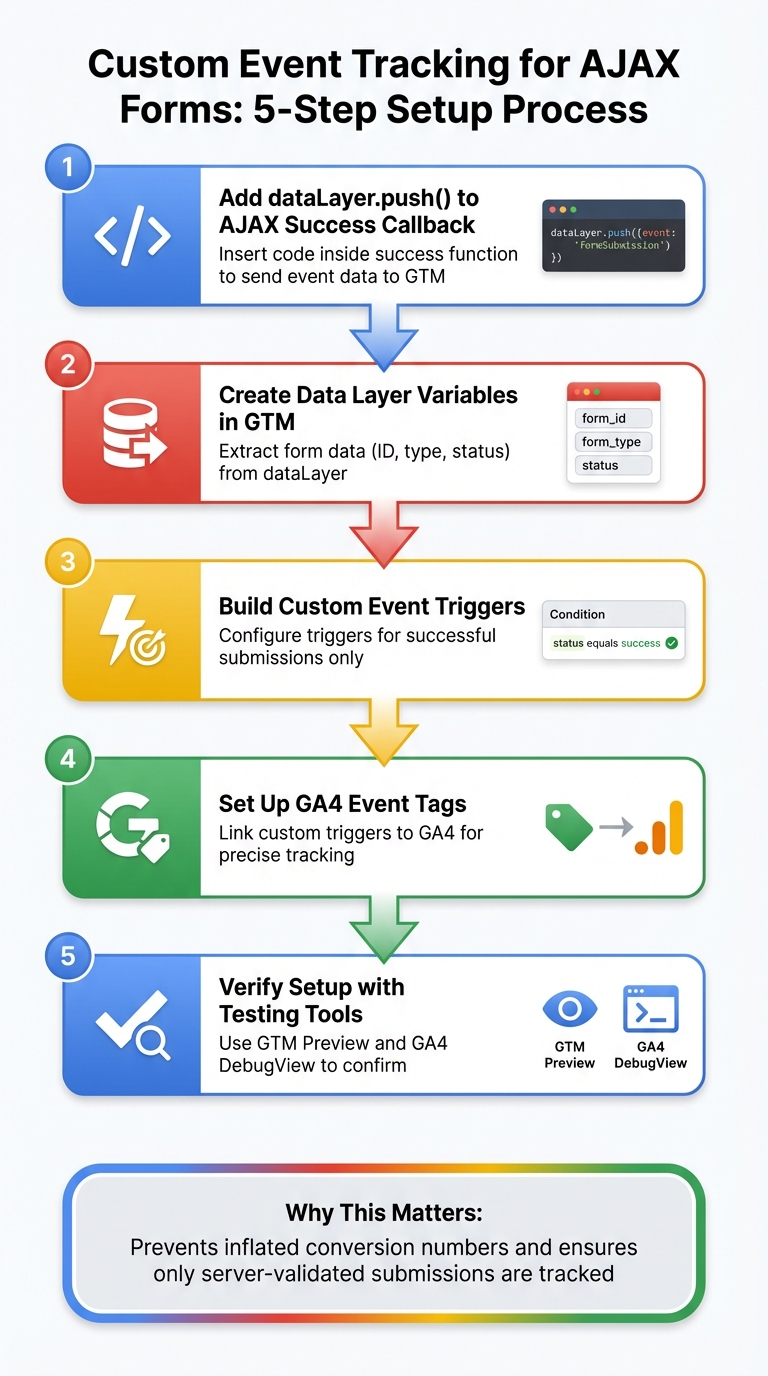
5-Step Process for Tracking AJAX Forms with Google Tag Manager and GA4
AJAX Forms and Event Tracking Fundamentals
What AJAX Forms Are and How They Work
AJAX (Asynchronous JavaScript and XML) is a technique that allows web pages to communicate with servers without refreshing or disrupting the current page view. Unlike traditional forms, which reload the entire page or redirect users to a new “Thank You” page after submission, AJAX forms operate behind the scenes. They send data to the server and display success messages directly on the page, providing a smoother and faster user experience.
These forms rely on JavaScript methods such as jQuery‘s $.ajax, the fetch API, or XMLHttpRequest to send data. Curious if a form uses AJAX? Open your browser’s Developer Tools, head to the Network tab, and submit the form. If the page doesn’t reload but you notice a network request (often targeting an endpoint like ajax.php), you’re looking at an AJAX form.
BUT these forms pose challenges for standard tracking methods, as we’ll explore next.
Why Standard Tracking Methods Don’t Work
When it comes to tracking conversions, AJAX forms can be tricky. Unlike traditional forms, they don’t trigger the standard submit event that tools like Google Tag Manager (GTM) rely on. Developers often use JavaScript’s preventDefault() function to stop the browser’s default form submission behavior, effectively bypassing GTM’s built-in “Form Submission” trigger.
“The form must dispatch a valid form submit event which also bubbles all the way to the document node… Many forms send their data with custom-built requests (e.g. jQuery’s $.ajax or the XMLHttpRequest API), and these prevent the submit event from working.” – Simo Ahava, Senior Data Advocate, Reaktor
Because AJAX submissions don’t reload the page or change the URL, traditional tracking methods like pageview-based triggers fail to capture these events. Success messages are dynamically injected into the page, invisible to standard triggers unless you implement custom solutions like “Element Visibility” or “DOM Change” listeners. In fact, in nearly all professional setups, GTM’s default form auto-event listener won’t record AJAX submissions unless custom tracking is added.
| Feature | Traditional Form Submission | AJAX Form Submission |
|---|---|---|
| User Experience | Page reloads or redirects | Page stays static; content updates dynamically |
| GTM Detection | Listens for browser submit event |
Requires custom listener |
| Tracking Method | “Thank You” pageviews | Custom Events or Element Visibility triggers |
| Technical Execution | Browser handles request | JavaScript handles request in background |
Track AJAX forms with Google Tag Manager and Google Analytics 4

How to Set Up Custom Event Tracking for AJAX Forms
Here’s a step-by-step guide to setting up custom event tracking for AJAX forms using Google Tag Manager (GTM) and Google Analytics 4 (GA4). With this method, you’ll be able to track form submissions more precisely.
Step 1: Add dataLayer Code to Your AJAX Success Function
To start, insert a dataLayer.push() into the success callback of your AJAX function. This ensures that form submission data is sent to GTM once the server confirms a successful submission. You’ll need access to your site’s JavaScript files or theme editor to add this code.
Here’s an example using jQuery:
window.dataLayer = window.dataLayer || []; $.ajax({ url: '/submit-form.php', type: 'POST', data: formData, success: function(response) { window.dataLayer.push({ 'event': 'formSubmission', 'form_id': 'contact_footer_01', 'form_type': 'newsletter_signup', 'status': 'success' }); } }); The event key acts as the trigger in GTM. You can name it anything (e.g., ajaxComplete or formSubmission), but it must match the name you use in your GTM trigger. Including keys like form_id and form_type helps organize data in GA4 when tracking multiple forms.
“A developer can trigger the dataLayer.push from the website’s backend code at the precise moment a successful action occurs. This eliminates the guesswork and fragility of trying to listen for changes in the website’s front-end…” – Julius Fedorovicius, Founder, Analytics Mania
Always use window.dataLayer.push to avoid scope issues. Only place this code in the success callback, not in error handlers, to avoid tracking failed submissions. Also, avoid including Personally Identifiable Information (PII) to comply with Google Analytics policies.
For Fetch API, the implementation looks like this:
window.dataLayer = window.dataLayer || []; fetch('/submit-form.php', { method: 'POST', body: formData }) .then(response => response.json()) .then(data => { window.dataLayer.push({ 'event': 'formSubmission', 'form_id': 'contact_footer_01', 'status': 'success' }); }); With the dataLayer events in place, you’re ready to configure GTM to capture this data.
Step 2: Create Data Layer Variables in GTM
Next, set up Data Layer Variables in GTM to extract the data from your dataLayer.push. These variables allow you to use the data in triggers and tags.
- Go to Variables > User-Defined Variables > New in GTM.
- Select Data Layer Variable as the variable type.
- In the “Data Layer Variable Name” field, enter the exact key from your
dataLayer.pushcode (e.g.,form_id). - Name the variable descriptively, like “DLV – Form ID”, for easy identification.
Repeat this process for each key you want to track, such as form_type or status. If your dataLayer structure is nested (e.g., attributes.response.data.message), use dot notation to specify the value.
Understanding how to configure Data Layer Variables is critical for advanced tracking. Over 80% of GTM “Recipes” depend on custom events.
Step 3: Build Custom Event Triggers in GTM
With your variables ready, create a custom event trigger in GTM to fire your tracking tag.
- Navigate to Triggers > New in GTM.
- Select Custom Event as the trigger type.
- In the “Event Name” field, enter the event name from your
dataLayer.pushcode (e.g.,formSubmission). Remember, event names are case-sensitive. - Set the trigger to fire on Some Custom Events and add conditions using your Data Layer Variables (e.g.,
statusequalssuccess) to ensure it only fires for successful submissions.
Use GTM Preview mode to test your setup. Submit your form and copy the event name directly from the summary timeline to avoid typos.
Here’s a quick comparison of standard form triggers versus custom event triggers for AJAX forms:
| Feature | Standard Form Trigger | Custom Event Trigger (AJAX) |
|---|---|---|
| Detection Method | Listens for browser “submit” event | Listens for a dataLayer.push from a script |
| Page Behavior | Requires a page reload or redirect | Works on static pages with dynamic updates |
| Reliability | May miss AJAX submissions | Tied directly to server responses |
| Setup Complexity | Minimal configuration | Requires custom code and Data Layer Variables |
Step 4: Configure a GA4 Event Tag
Now, set up a GA4 event tag to capture form submissions.
- Go to Tags > New in GTM.
- Select Google Analytics: GA4 Event as the tag type.
- Choose your GA4 Configuration tag or create one if needed.
- Enter a descriptive event name like
form_submissionin the “Event Name” field. This name will appear in your GA4 reports. - Add Event Parameters to pass additional data. For example, link
form_idandform_typeto their corresponding Data Layer Variables.
Finally, assign the Custom Event trigger from Step 3 to this tag and save it.
Step 5: Test Your Tracking Setup
Testing is crucial to ensure everything works as expected. Follow these steps:
- Open Preview mode in GTM and submit the AJAX form on your site.
- Check the Tag Assistant timeline to verify the custom event (e.g.,
formSubmission) appears and the GA4 Event Tag fires as expected. - Open GA4 DebugView in Admin and resubmit the form. Confirm the
form_submissionevent appears in DebugView with all the parameters you configured.
Also, test error cases by submitting incomplete forms to ensure the tracking tag doesn’t fire. Adjust trigger conditions if necessary.
“A painful mistake in form tracking is to only test for a successful submission. A poorly configured trigger can fire even when a user submits a form with empty required fields. This leads to inflated conversion numbers and inaccurate reports.” – Julius Fedorovicius, Founder, Analytics Mania
For further validation, use your browser’s Developer Tools. Go to the Network tab, filter for “collect”, and check outgoing requests to Google Analytics.
sbb-itb-6e49fcd
Best Practices for AJAX Form Tracking
Track Successful Submissions and Errors Separately
The standard “Form Submission” triggers in Google Tag Manager (GTM) only detect when a form is submitted, not whether it was successfully processed by the server. This can inflate conversion numbers because events might fire even if the user submits an incomplete form with missing required fields.
To address this, set up separate dataLayer events for success and error states. When your AJAX listener detects an HTTP status code in the 200–299 range or a success message in the JSON response (e.g., “Thanks for contacting us”), push a success event like formSubmission with status: 'success' to the dataLayer. For errors, push a different event, such as formError, when the server returns a non-200 status code or encounters a network error.
If your “Success” tag fires during tests with incomplete form submissions, refine your trigger to respond only to unambiguous success signals. Many tracking setups bypass GTM’s default form listeners in favor of custom AJAX or dataLayer-based methods for greater reliability.
Once you’ve defined success and error events, use form identifiers to distinguish between submissions for better clarity.
Organize Data by Form ID or Name
When your site has multiple forms, it’s important to track them individually. Start by enabling GTM’s built-in variables, such as Form ID and Form Classes, and add a custom parameter like form_id to your GA4 event tag. This ensures that each submission is tied to a specific identifier. Use GTM’s Preview mode to confirm that the correct identifier is being captured. If a unique ID isn’t available, you can use the form’s classes or even its destination URL as a fallback. Register this custom parameter as a custom dimension in GA4 so it appears in your reports.
For better organization, name your triggers clearly and configure them to fire on “Some Forms” by matching specific Form ID values. This approach gives you granular control, making it easier to compare performance across different forms.
Use PageTest.AI to Optimize Form Performance

Accurate tracking not only helps you measure form performance but also guides your optimization efforts. PageTest.AI offers a no-code way to test form elements without disrupting your existing tracking setup. It creates AI-driven content variations and monitors metrics like clicks, engagement, and user behavior.
By combining tracking insights with A/B testing, you can identify and fix problem areas. For example, if your AJAX tracking data shows frequent errors, you can use PageTest.AI to test changes like simpler field labels or clearer instructions on forms with high error rates.
PageTest.AI integrates with platforms like WordPress, Wix, and Shopify, allowing you to track these improvements alongside your GA4 event data. This combination can lead to better user experiences and improved conversion rates.
Conclusion
Tracking AJAX forms submissions requires a specialized approach compared to standard form tracking. To get it right, you need to implement an AJAX listener, push validated data into the GTM Data Layer, create Data Layer variables and custom triggers, and configure GA4 event tags.
Why is this so important? Without accurate tracking, you lose out on critical insights into how your forms are performing. Standard tracking methods often fail to capture a large portion of AJAX submissions. That means you could be overlooking key conversion data – data that directly impacts your ability to scale marketing campaigns and increase revenue.
“Proper conversion tracking is essential for digital marketing. Without the ability to measure and optimize for specific campaigns, you wouldn’t be able to scale campaigns and drive revenue or leads.” – Kristin Stoyanov, Digital Marketing Professional, Metric DS
Separating successful submissions from errors and organizing insights by form identifiers gives you a clear view of where users face challenges and where conversions shine. This level of detail helps you focus on targeted improvements that can increase your conversion rates.
Tracking AJAX forms – FAQs
How can I track AJAX form submissions accurately in GA4?
To track AJAX form submissions in GA4 without missing a beat, you can use custom event tracking. This method works well because AJAX forms don’t trigger a page reload, making traditional tracking methods less effective.
A great way to handle this is with Google Tag Manager (GTM). In GTM, you can create a trigger that listens for specific actions, like form success messages, the completion of an AJAX request, or changes in the DOM. These triggers act as signals that a form submission has occurred.
Once your trigger is in place, you can use GTM or custom JavaScript to send the event data directly to GA4. This process ensures that every successful AJAX form submission is captured correctly. Don’t skip the testing phase – it’s crucial to verify the setup and ensure no data slips through the cracks.
Why is custom event tracking important for AJAX forms compared to traditional methods?
Custom event tracking plays a key role in handling AJAX forms because it ensures you capture accurate data from form submissions that happen without a full page reload. Since AJAX works asynchronously, it often bypasses the usual pageview-based tracking triggers, making traditional methods less reliable.
With custom tracking in place, you can keep a closer eye on user interactions, better understand how your forms are performing, and use that information to improve the user experience and boost conversions.
How can I ensure my AJAX form tracking is set up correctly?
To ensure your AJAX form tracking is set up correctly, start by opening your browser’s developer tools. Use the Network tab to monitor activity when the form is submitted. Check for the AJAX request and confirm that the form data is being sent properly.
If you’re working with Google Tag Manager (GTM), switch to Preview mode. This lets you see if your tags are firing when the form is submitted. Double-check that your custom triggers are configured to recognize the AJAX event. After that, head over to your analytics platform, like Google Analytics, and verify that form submission events are being recorded. You can check real-time data or event reports to confirm everything is working.
By combining these steps – network monitoring, GTM Preview mode, and analytics platform checks – you’ll have a clear picture of whether your tracking is functioning as expected.
Related Blog Posts
say hello to easy Content Testing
try PageTest.AI tool for free
Start making the most of your websites traffic and optimize your content and CTAs.
Related Posts

09-10-2026
 Becky Halls
VWO and AB Tasty Are Now Wingify: What the Merger Actually Means for Your Testing Stack
If you run A/B tests on VWO or AB Tasty, you’ve probably noticed the logins moved, the branding changed, and a new name, Wingify, started showing up in your inbox. Here’s what actually happened, what’s still unclear, and where a smaller, published-price tool like PageTest.AI fits if you’re reconsidering your stack because of it. The […]

31-08-2026
Becky Halls
Spiralyze alternatives: CRO agency or software in 2026?
Spiralyze makes an offer that’s hard to argue with. “30% lift in 90 days. No fee until we deliver.” More precisely: 10 tests, 3 wins, more than 30% lift in your first 90 days, and you pay nothing until they’ve done it. I’ll say plainly what most competitor pages wouldn’t. On risk alone, that’s a better offer than […]

31-08-2026
Becky Halls
AB Tasty alternatives: an honest comparison for 2026
AB Tasty is a strong platform with a well-liked support team, sitting at 4.4 on G2 across 418 reviews. Reviewers on TrustRadius describe it as better value than pricier AB Tasty alternatives, which in this category is a real compliment. It also has the most unusual buying process here. No published pricing, and no free […]